
UI.HandleBegin
static bool HandleBegin(string id, Pose& pose, Bounds handle, bool drawHandle, UIMove moveType, UIGesture allowedGestures)
This begins a new UI group with its own layout! Much like a window, except with a more flexible handle, and no header. You can draw the handle, but it will have no text on it. The pose value is always relative to the current hierarchy stack. This call will also push the pose transform onto the hierarchy stack, so any objects drawn up to the corresponding UI.HandleEnd() will get transformed by the handle pose. Returns true for every frame the user is grabbing the handle.
| string id | An id for tracking element state. MUST be unique within current hierarchy. |
| Pose& pose | The pose state for the handle! The user will be able to grab this handle and move it around. The pose is relative to the current hierarchy stack. |
| Bounds handle | Size and location of the handle, relative to the pose. |
| bool drawHandle | Should this function draw the handle visual for you, or will you draw that yourself? |
| UIMove moveType | Describes how the handle will move when dragged around. |
| UIGesture allowedGestures | Which hand gestures are used for interacting with this Handle? |
| RETURNS: bool | Returns true for every frame the user is grabbing the handle. |
static bool HandleBegin(string id, Pose& pose, Bounds handle, Single& scale, bool drawHandle, UIMove moveType, UIGesture allowedGestures)
This is a variant of UI.HandleBegin that additionally
supports uniform scaling when two or more interactors grab the handle
at the same time. With a single interactor the handle behaves exactly
like the normal handle. With multiple interactors, their motion is
combined into a translation, rotation, and a uniform scale. Interactors
may freely join or leave the interaction without the handle jumping.
Providing a scale here enables scaling; pass UIMove.ExactNoscale as
the moveType if you want multi-interactor translate/rotate but no
scaling.
| string id | An id for tracking element state. MUST be unique within current hierarchy. |
| Pose& pose | The pose state for the handle! The user will be able to grab this handle and move it around. The pose is relative to the current hierarchy stack. |
| Bounds handle | Size and location of the handle, relative to the pose. When a scale is provided, the handle multiplies these Bounds by it - so pass your unscaled base size, and the grab volume and drawn handle grow and shrink to match your scaled content. |
| Single& scale | A uniform scale multiplier that gets accumulated as the user scales the handle with multiple interactors. Seed this with 1 (or your starting scale). Since the Pose has no scale of its own, apply this value to your content - the handle Bounds are scaled by it for you, so the grab volume and drawn handle stay matched. |
| bool drawHandle | Should this function draw the handle visual for you, or will you draw that yourself? |
| UIMove moveType | Describes how the handle will move when dragged around. Use UIMove.ExactNoscale to disable scaling. |
| UIGesture allowedGestures | Which hand gestures are used for interacting with this Handle? |
| RETURNS: bool | Returns true for every frame the user is grabbing the handle. |
Examples
An Interactive Model
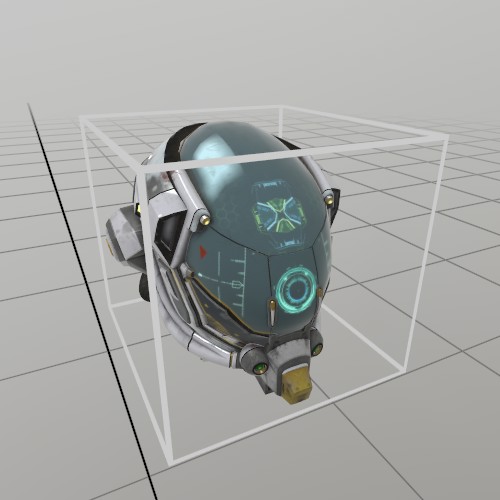
If you want to grab a Model and move it around, then you can use a
UI.Handle to do it! Here’s an example of loading a GLTF from file,
and using its information to create a Handle and a UI ‘cage’ box that
indicates an interactive element.
Model model      = Model.FromFile("DamagedHelmet.gltf");
Pose  handlePose = new Pose(0,0,0, Quat.Identity);
float scale      = .15f;

public void StepHandle() {
	UI.HandleBegin("Model Handle", ref handlePose, model.Bounds*scale);

	model.Draw(Matrix.S(scale));
	Mesh.Cube.Draw(Material.UIBox, Matrix.TS(model.Bounds.center*scale, model.Bounds.dimensions*scale));

	UI.HandleEnd();
}
Found an issue with these docs, or have some additional questions? Create an Issue on Github!